1
Start setup
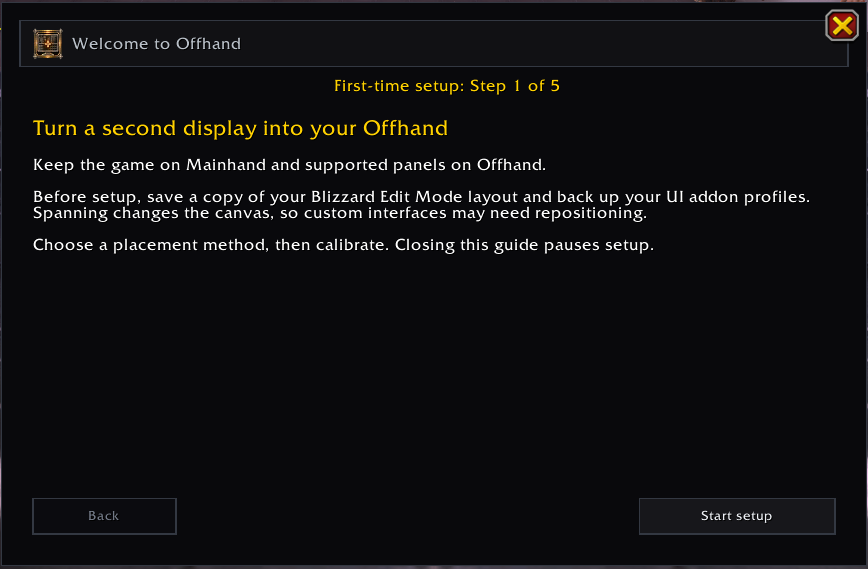
Back up your Blizzard Edit Mode layout and UI addon profiles, then click Start setup in the welcome guide.
Open the guide with /offhand guide. It remains available later from Help & recovery.
Back up your Blizzard Edit Mode layout and UI addon profiles, then click Start setup in the welcome guide.
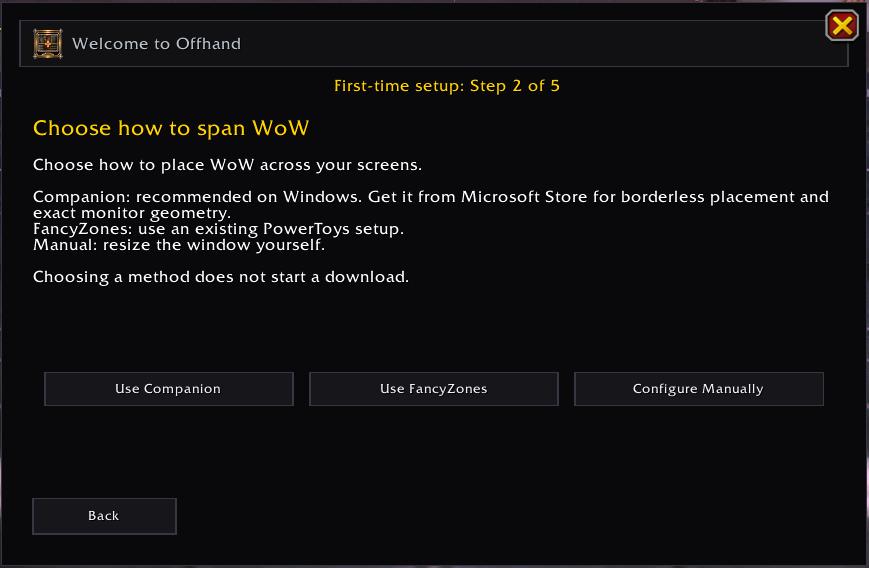
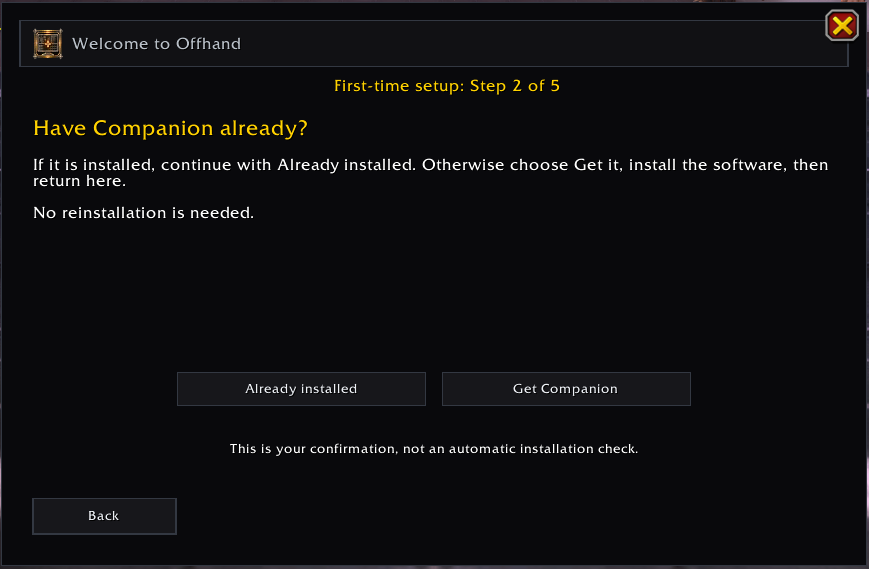
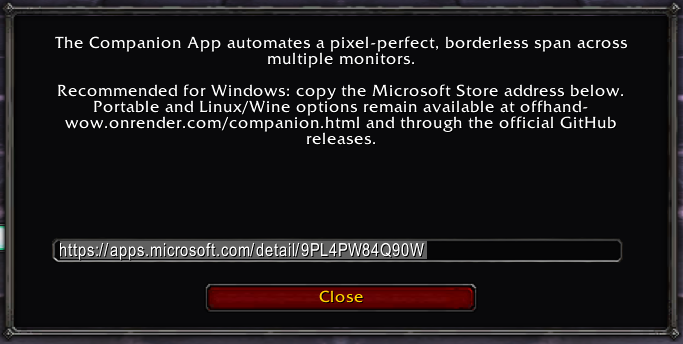
Choose Use Companion for the recommended Windows setup. Click Already installed, or get Companion and return here. FancyZones and manual placement remain alternatives.
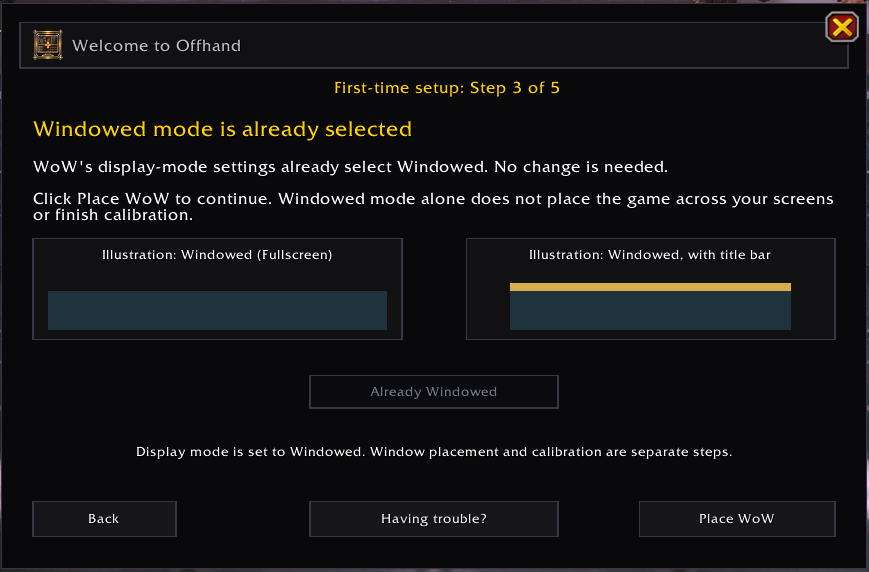
Select standard Windowed, then Place WoW. Windowed (Fullscreen) is different. Windowed mode alone does not span the game.
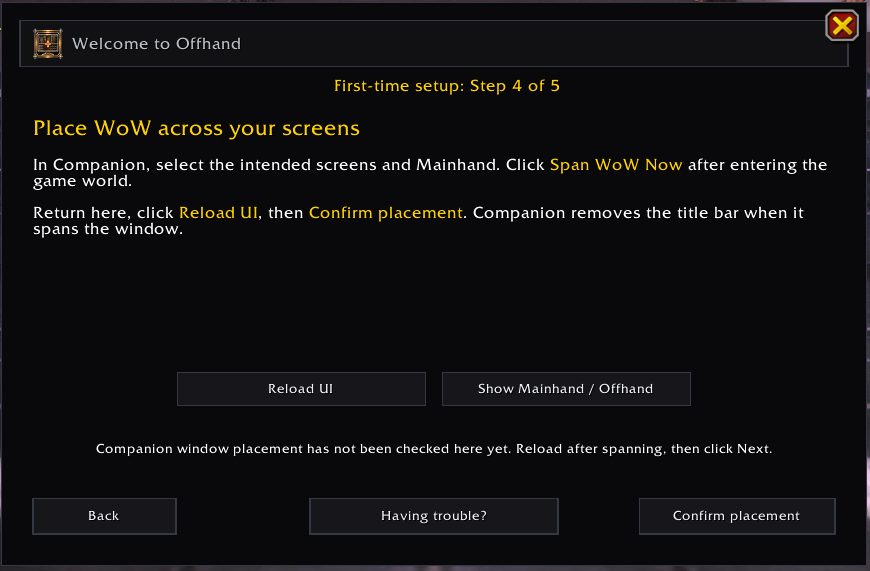
While in the game world, select your screens and Mainhand in Companion and click Span WoW Now. Return to the guide, click Reload UI, then Confirm placement. For FancyZones/manual placement, visually check the window, choose Confirm placement, then Remember Window.
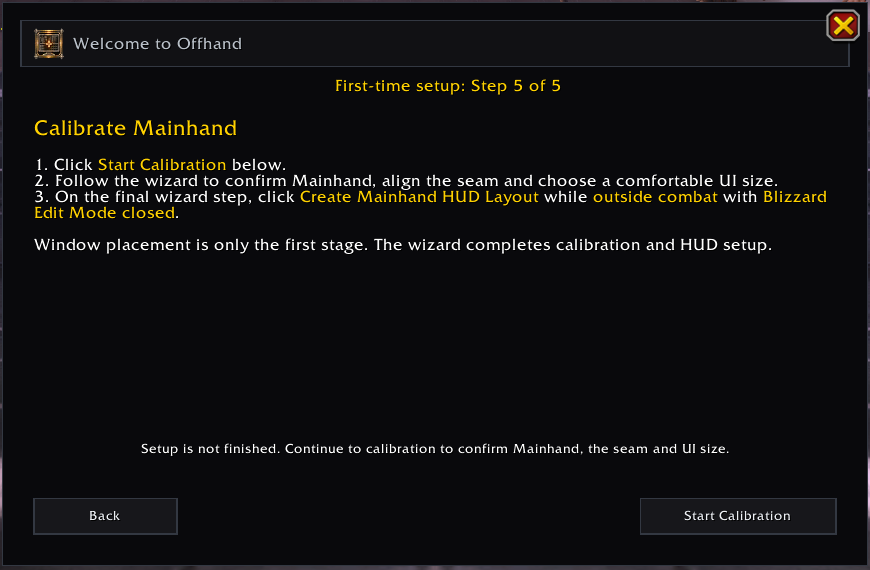
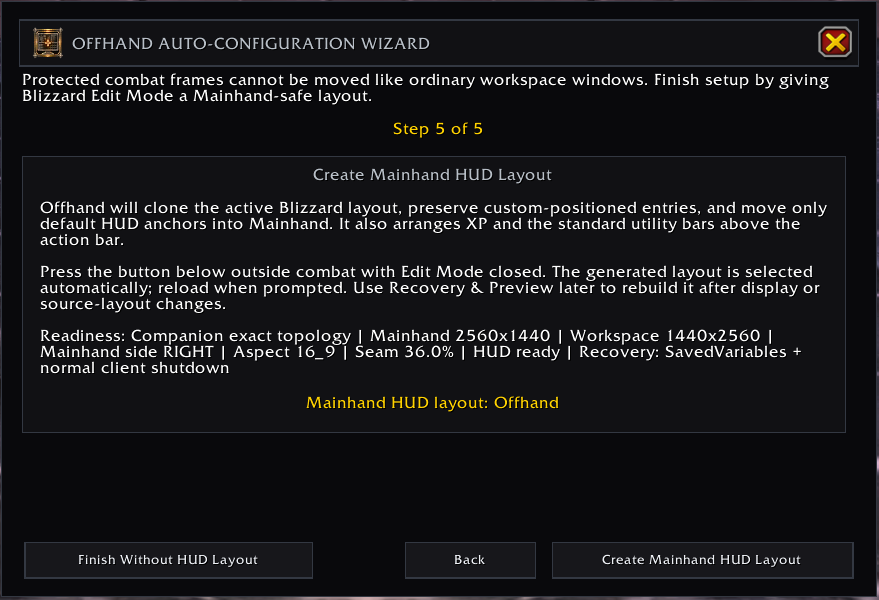
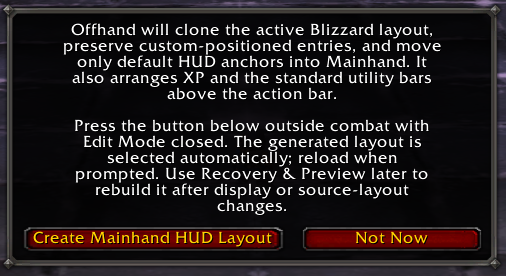
Click Start Calibration. Follow the separate wizard through display detection, orientation, seam and UI scale. Where supported, finish with Create Mainhand HUD Layout outside combat with Edit Mode closed, then Reload UI.
Expand a screen reference when you need it; select any image for its full-size view. Captures show one portrait/landscape setup. Values, available controls and some wording vary by client and version. Companion-supplied geometry controls are expected to be locked.
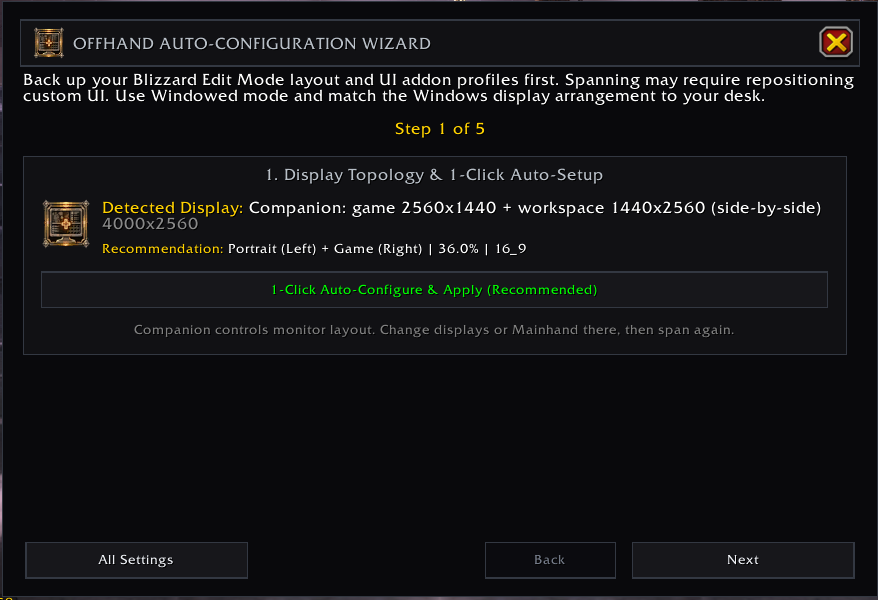
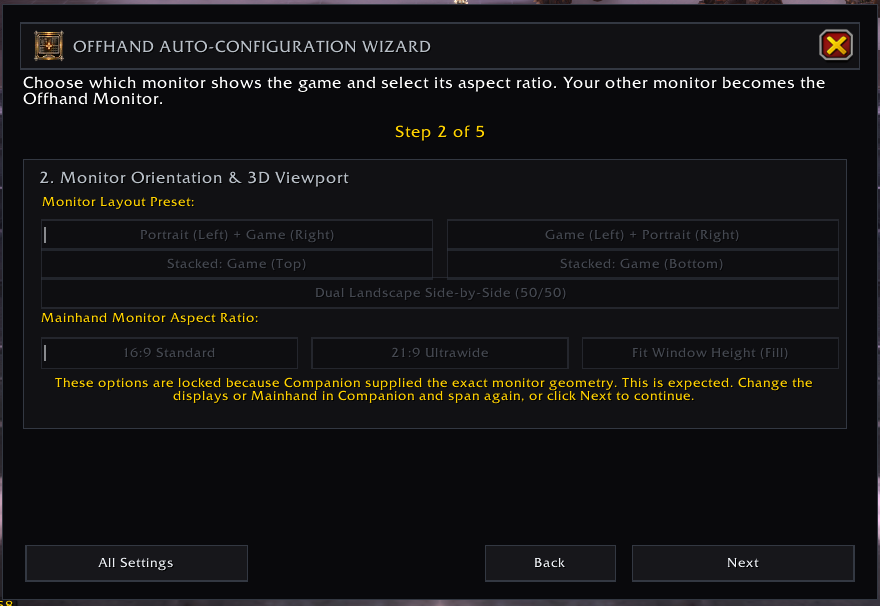
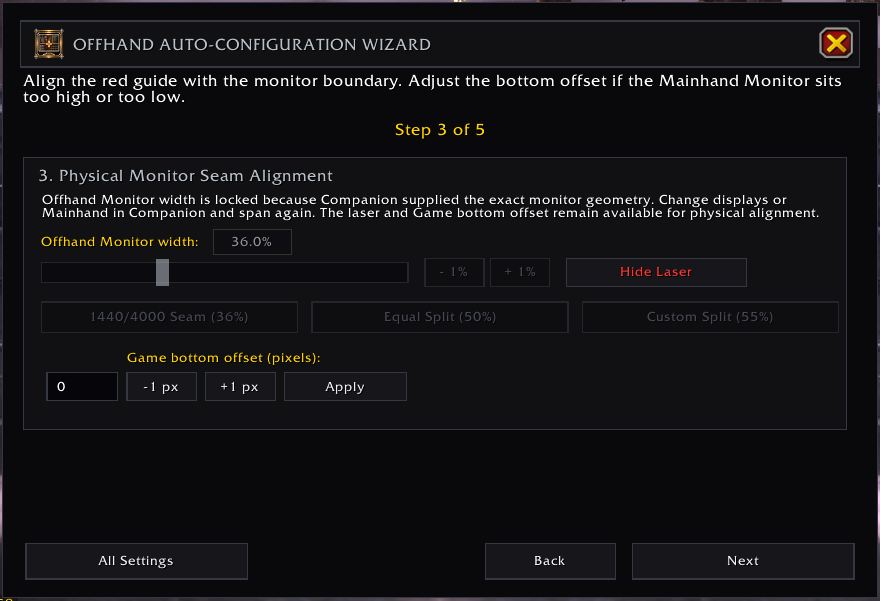
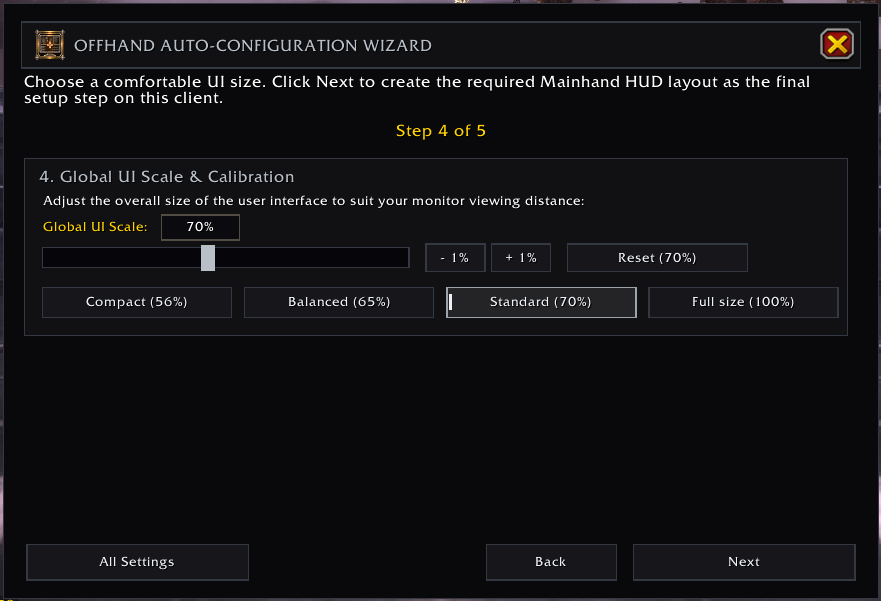
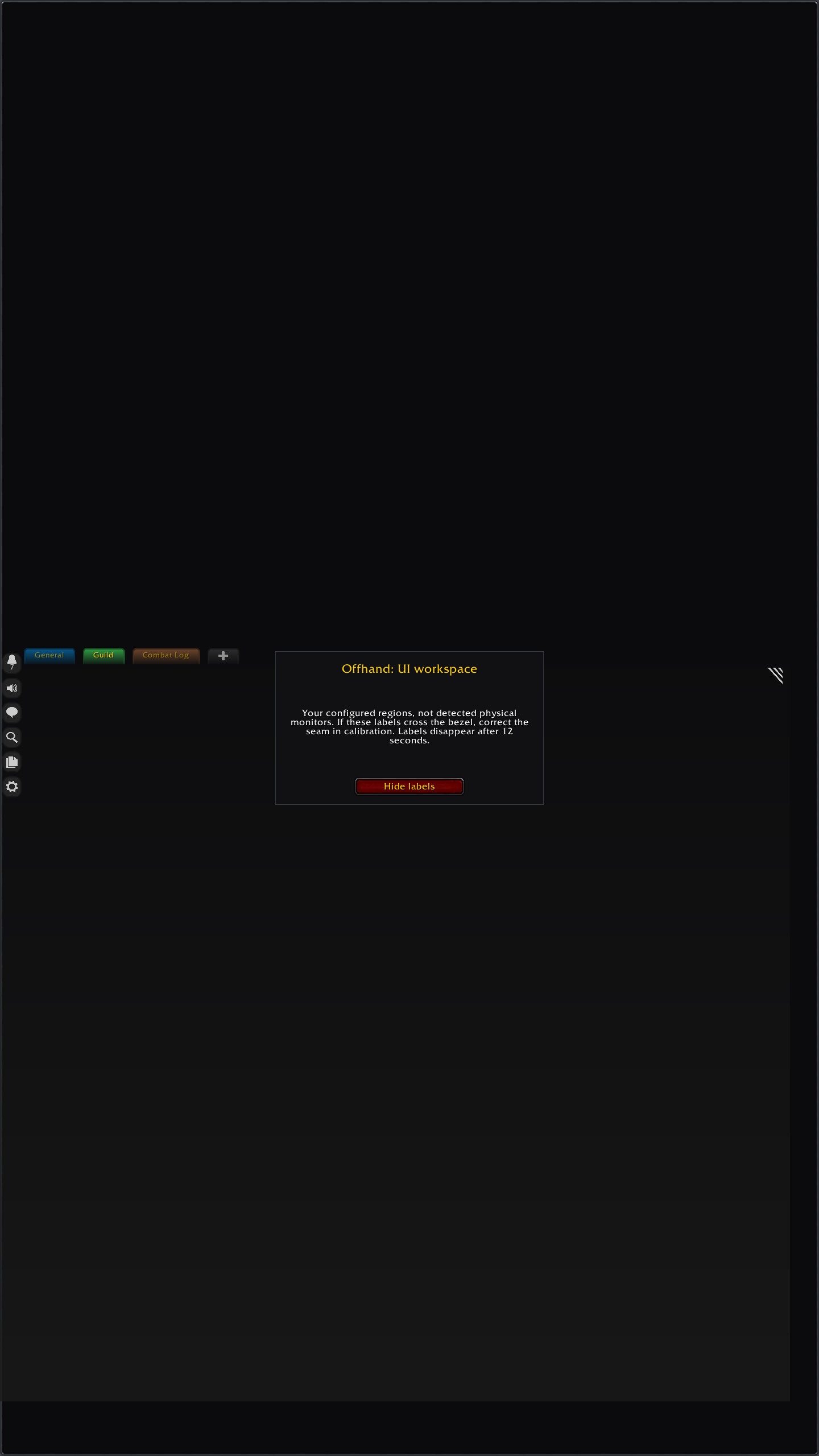
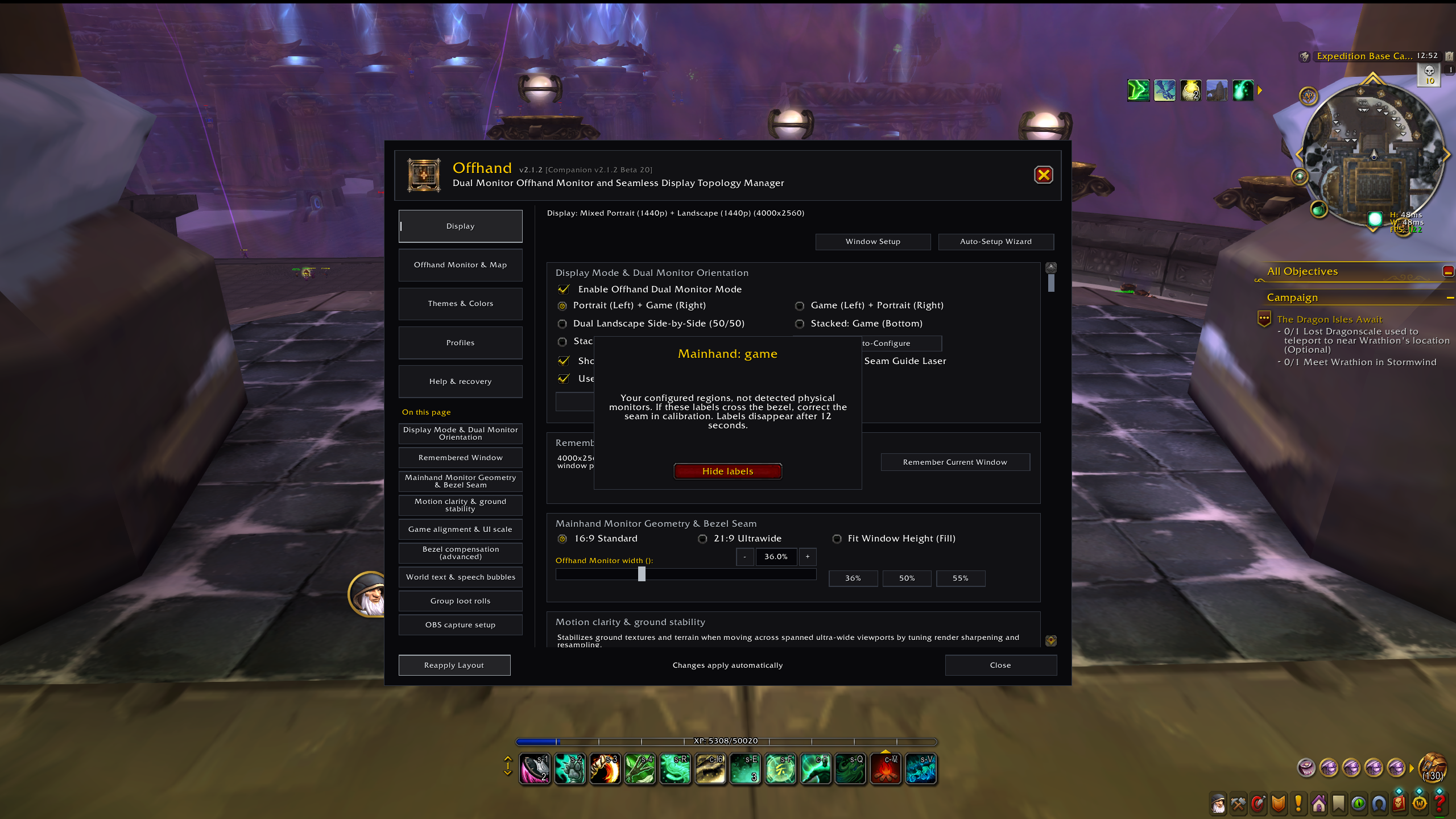
Click Show Mainhand / Offhand in the guide or Display settings. These labels show your configured regions, not automatically detected physical monitors. If they cross the bezel, correct the placement or calibration. Labels disappear after 12 seconds or when you choose Hide labels.
/offhand. Use Auto-Setup Wizard to repeat calibration, or use the Offhand Monitor & Map tab's Recovery & Preview controls for targeted repair.Offhand manages ordinary workspace windows. Blizzard Edit Mode remains responsible for protected combat controls.
World Map, Character panel, combined backpack, chat, and supported addon panels can live on the Offhand Monitor. Drag supported frames by their headers and let Offhand remember their positions.
Action bars, unit frames, stance and pet bars, party and raid frames, and other protected combat UI remain under Blizzard ownership. Customize these through Edit Mode after Offhand creates the Mainhand-safe layout.
Outside combat with Edit Mode closed, select Create Mainhand HUD Layout. Offhand clones the active Blizzard layout and moves default HUD anchors into Mainhand while preserving custom-positioned source entries.
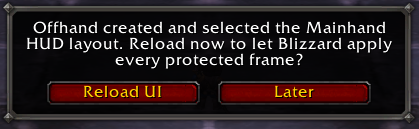
Reload when prompted so the generated layout and the rest of the Offhand workspace start from a clean state.
Open Blizzard Edit Mode, fine-tune the generated Offhand layout, and save it. Setup can reuse a compatible account layout on other characters without rewriting its edits. Different display geometry or frame owners may need a numbered layout; native controller layouts use Offhand - Gamepad. Existing character-named layouts remain intact. Keep protected controls inside the visible Mainhand region.
After selecting and saving the custom layout in Edit Mode, return to Offhand Monitor & Map → Recovery & Preview and select Use Current Edit Mode Layout. Built-in Modern and Classic layouts cannot be designated.

Type /offhand or /oh. Changes update the active profile immediately and WoW writes them to disk on logout or /reload.
Use this tab for monitor orientation, Mainhand geometry, the remembered independent window, camera and UI scale, world text, group-loot placement, and advanced bezel compensation.
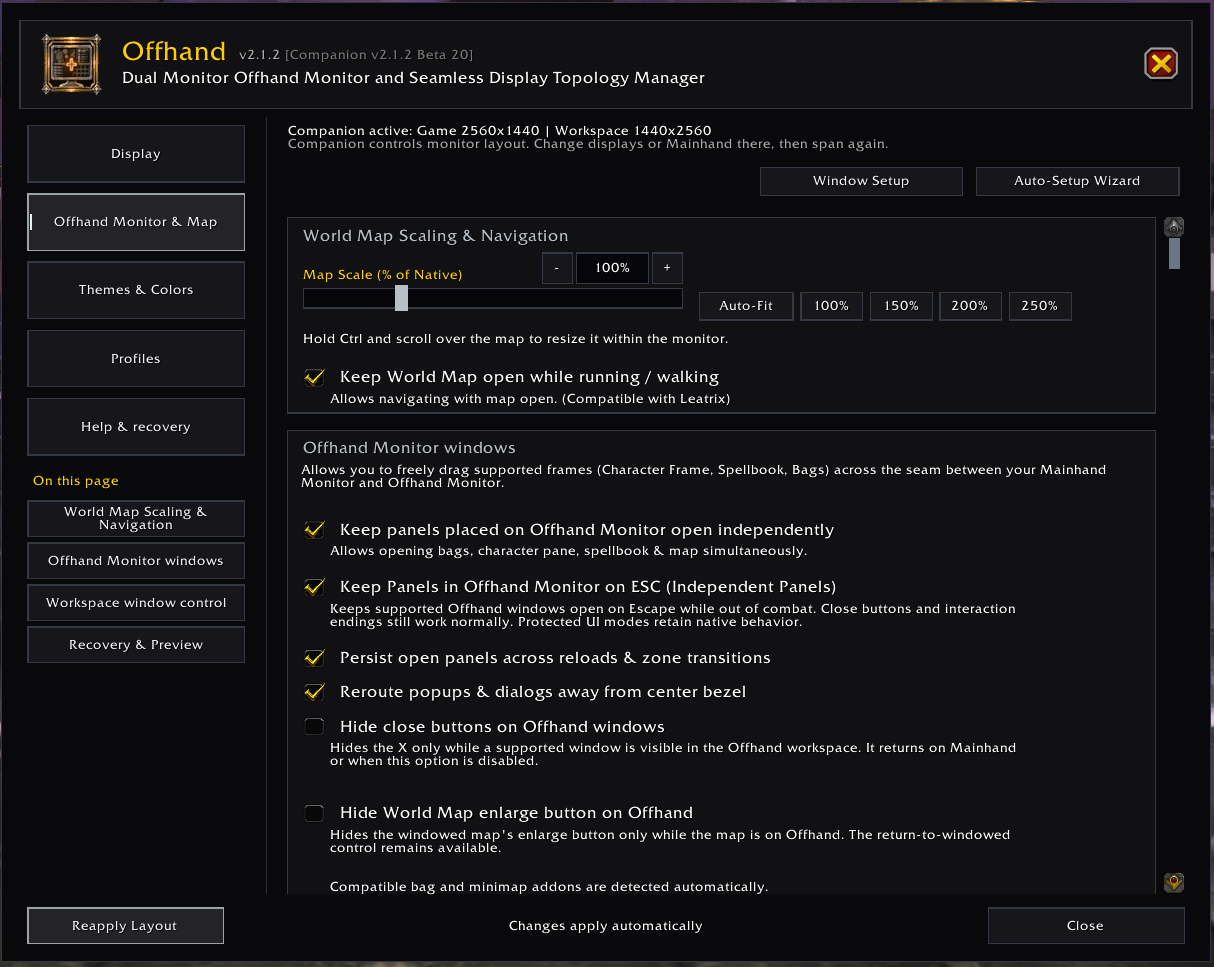
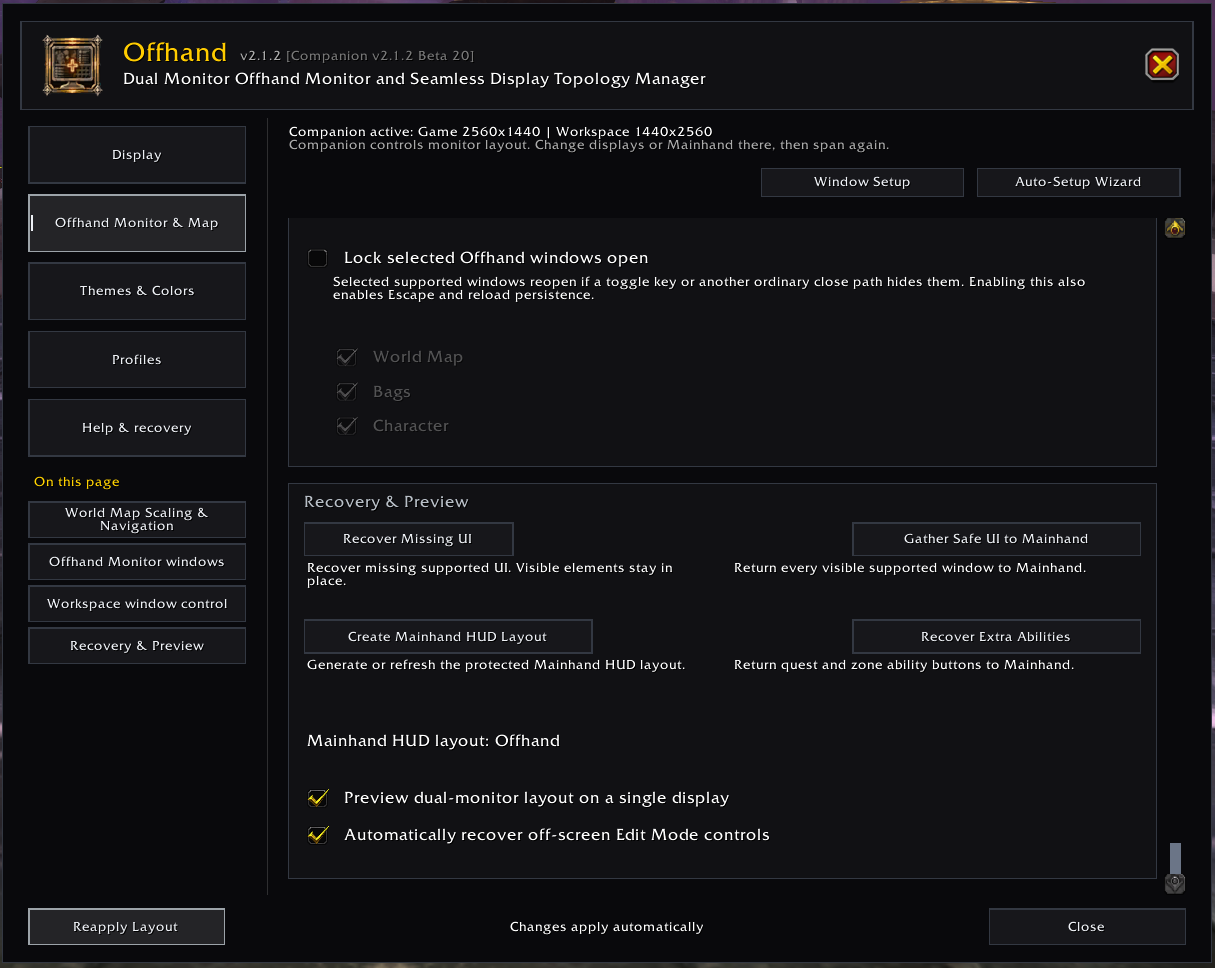
Use this tab for the World Map, ordinary workspace windows, persistence, recovery, and supported window behavior.
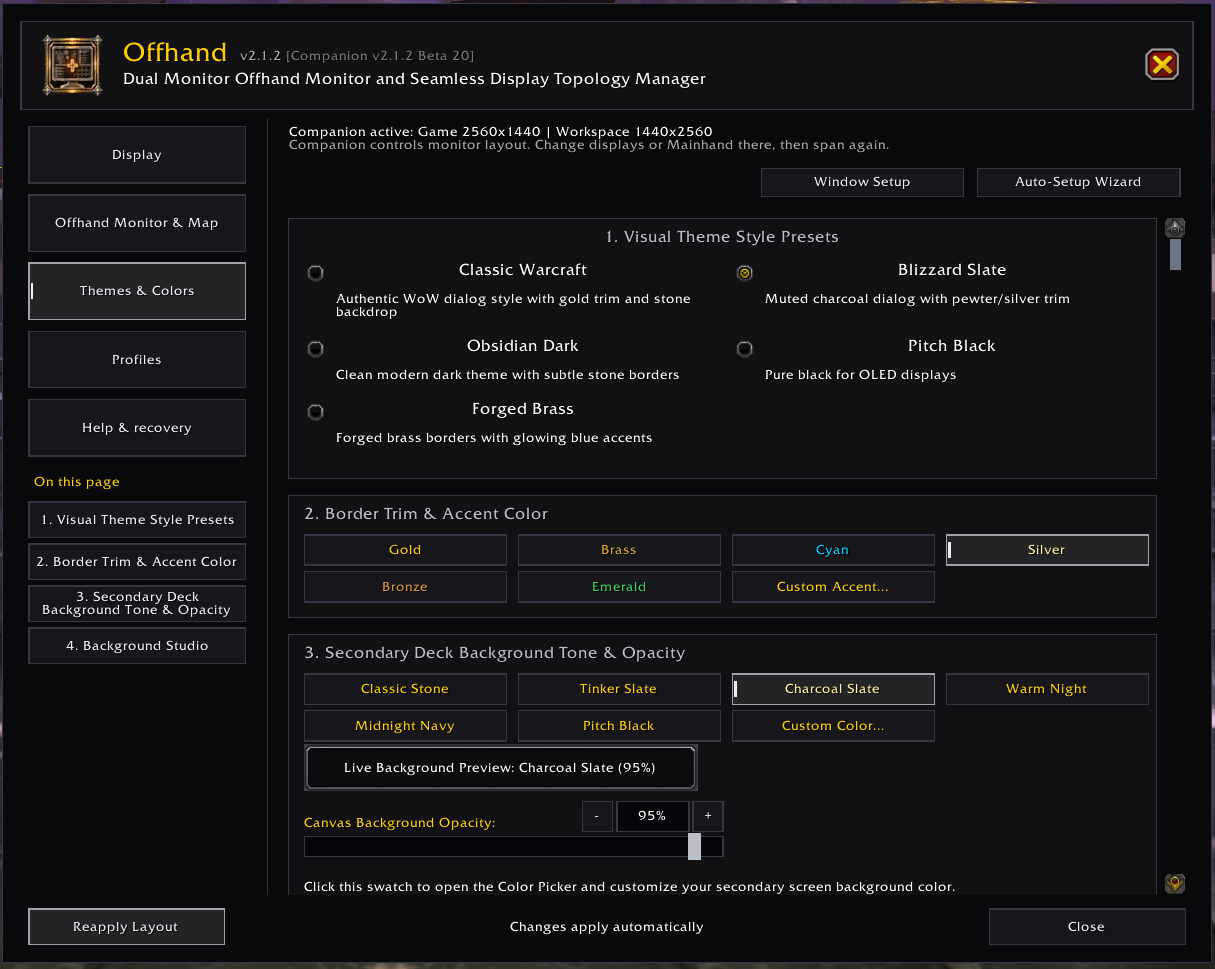
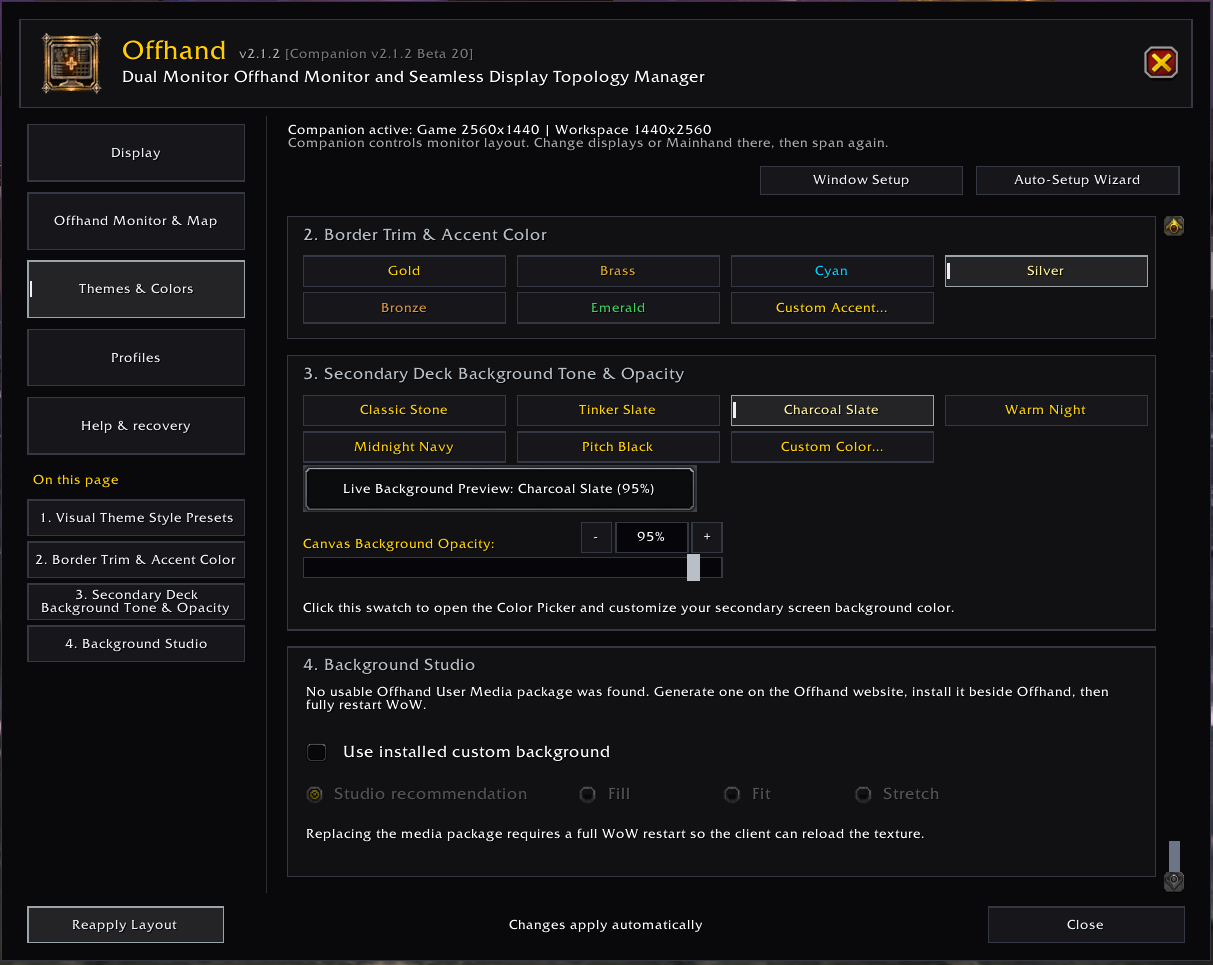
Choose the settings-window style, trim colour, canvas background, and opacity. The Background Studio card reports whether an installed Offhand_UserMedia package is ready.
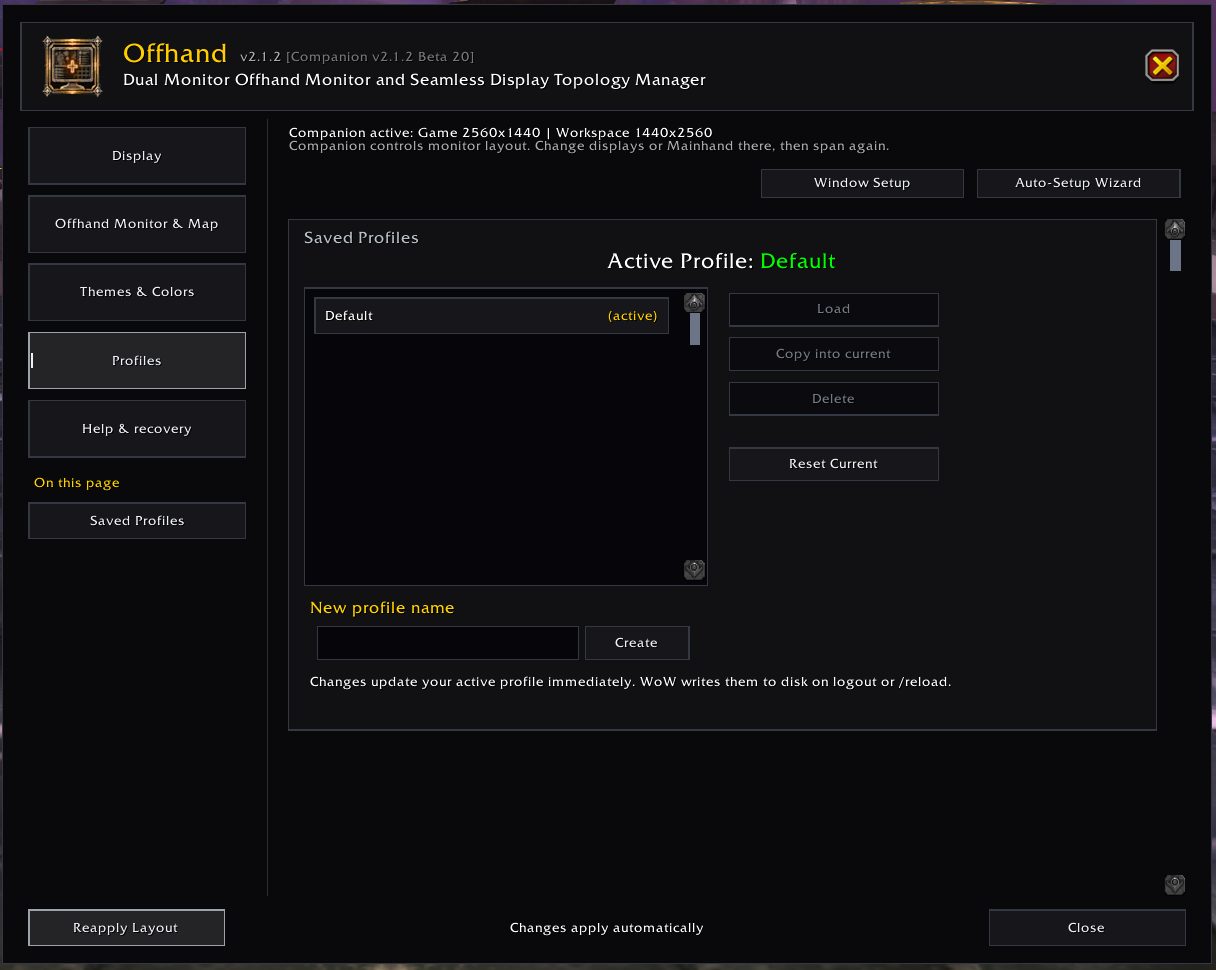
Create separate groups of Offhand settings for different characters, display arrangements, or play styles. The selected profile is character-specific, while its settings update as you make changes.
This is the in-game setup and recovery handbook. It reopens the first-time guide, calibration, and common recovery actions without requiring you to return to the website during play.
/offhand guideFirst-time guide/offhand wizardCalibration wizard/offhand diagSupport diagnosticsOpen only the tab you need. Each image links to the full-size capture so labels and controls remain readable.
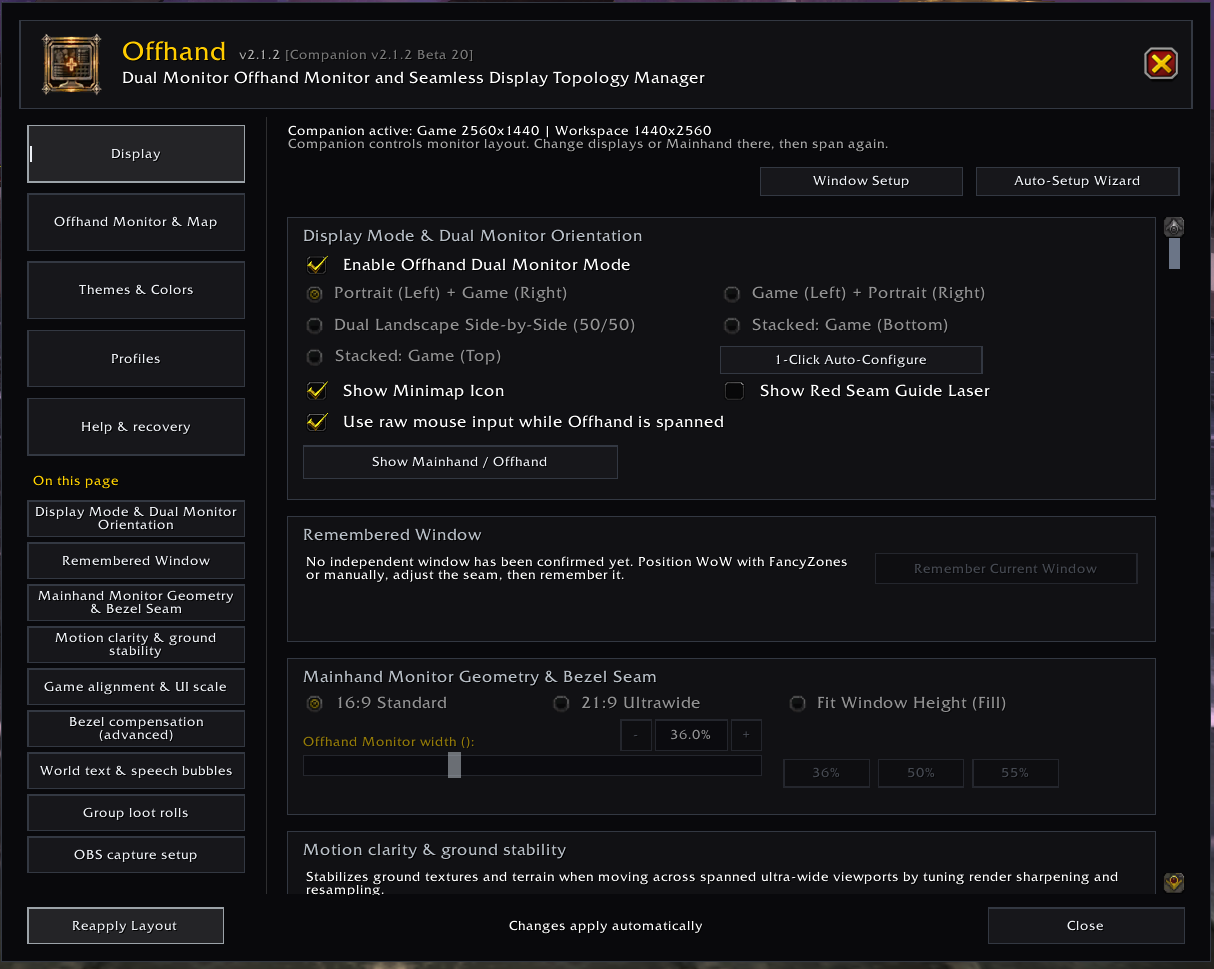
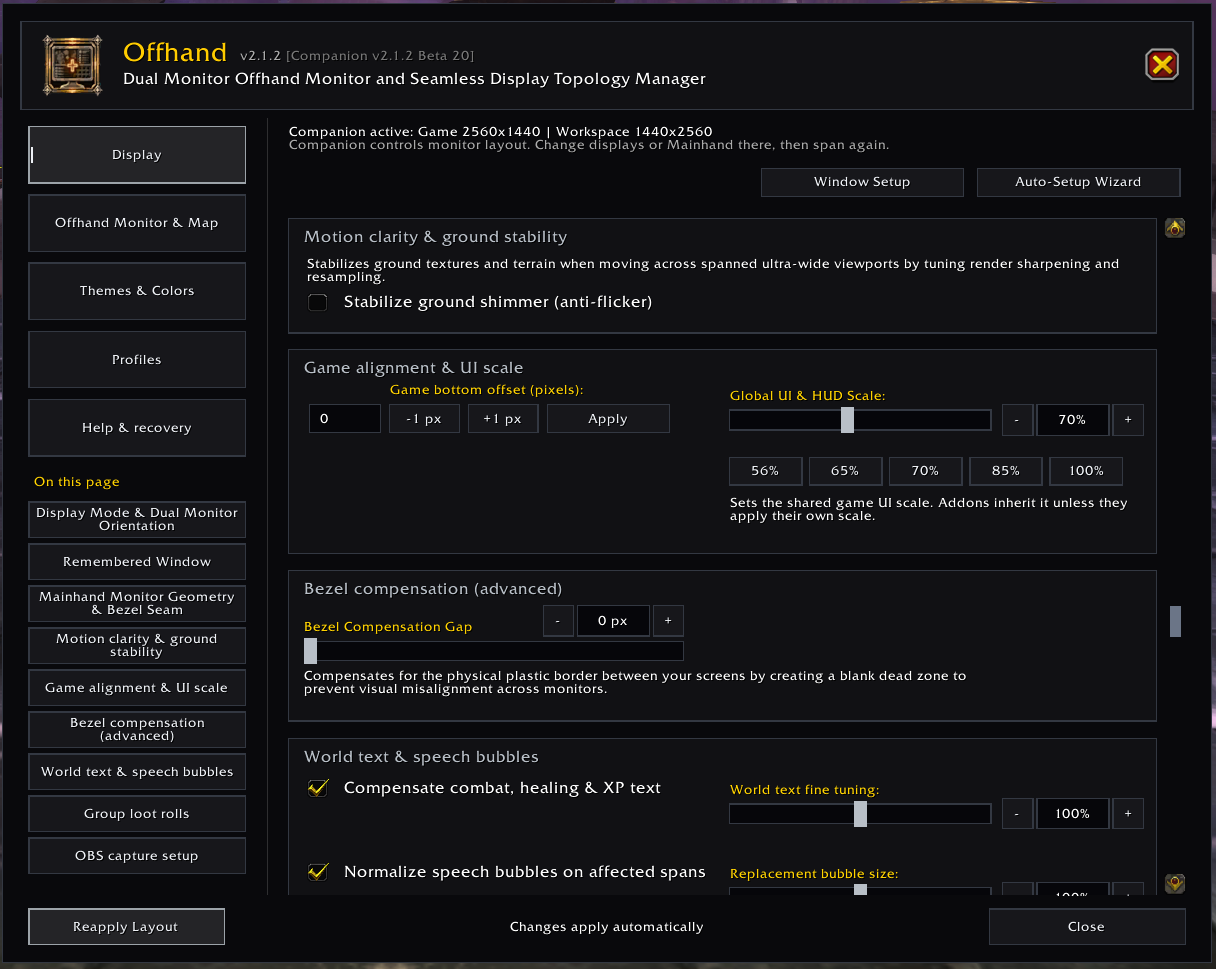
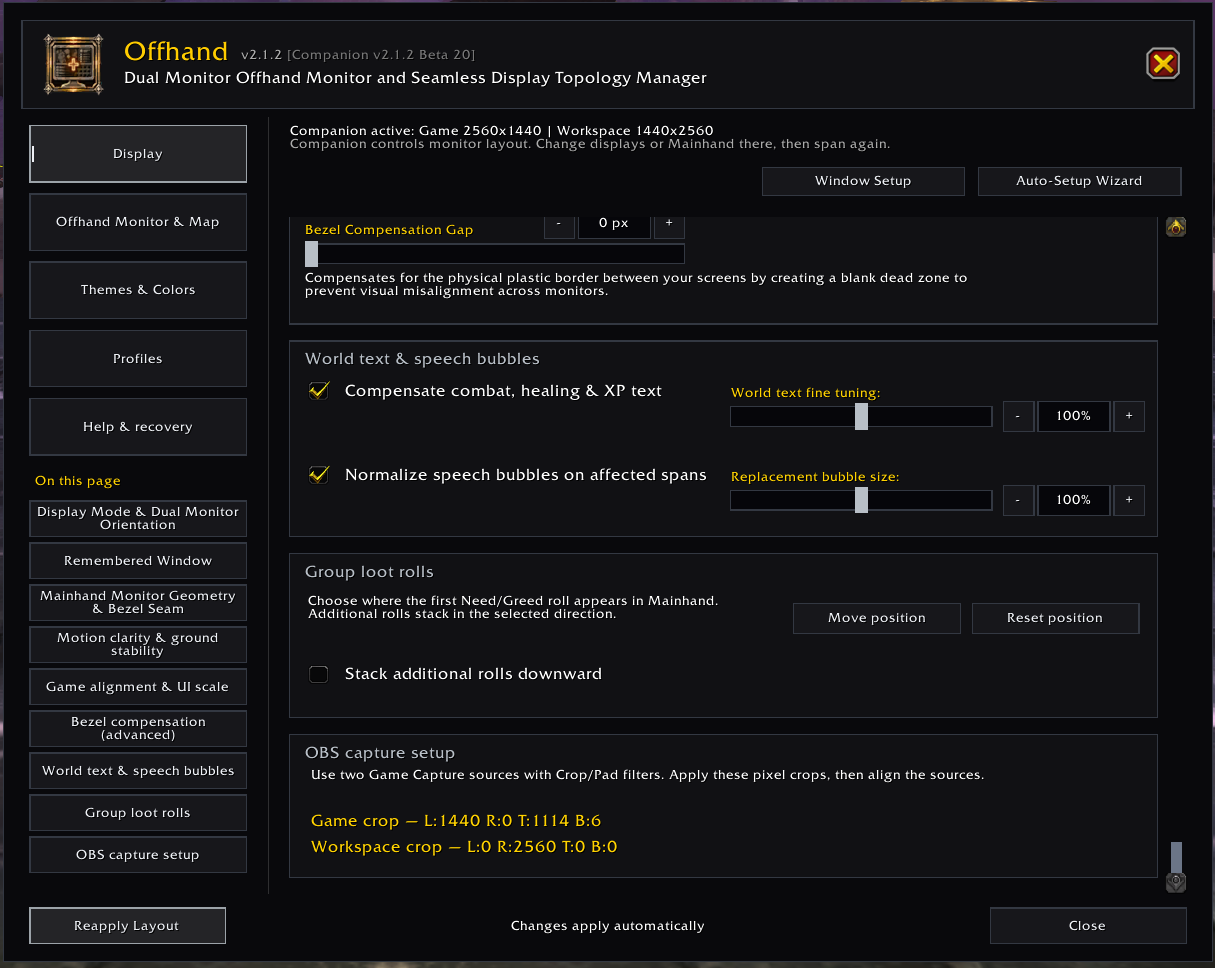
Open Help & recovery for the setup handbook. Welcome to Offhand reopens first-time setup, Auto-Setup Wizard repeats calibration, and Window Setup returns to placement. Start with Recover Missing UI when a supported window has disappeared.
Offhand validates the game canvas first, then restores panels and applies the saved layout.
Launch WoW, place it into the saved Canvas zone if Windows did not restore it automatically, and let Offhand validate the remembered dimensions.
Apply the saved span before opening workspace panels. Companion may be closed afterward unless you want automatic spanning or active display recovery.
Resize and position WoW to the remembered canvas. Only select Remember Current Window again after visually verifying the complete placement.
Correct the window before rebuilding in-game placement. Offhand keeps saved panel positions when it falls back to safe single-screen geometry.
Reapply the FancyZones zone, Companion span, or manual size. Reload after a corrected Companion span. For an independent setup, remember the current window only after its placement is visibly correct.
Manual Physical Monitor Seam Alignment supports 10% to 90% with 0.1 percentage-point precision. Exact Companion topology sets the physical seam automatically, so manual adjustment is disabled while it is active.
WoW's native loading artwork can span or crop across unequal displays. Offhand's in-world viewport does not control that artwork. As a manual workaround, use Companion's Restore Window before loading, then Span WoW Now once back in the world. If a border remains inside Mainhand after loading, check the actual window placement, Windows display scaling and bezel settings, then include those details with your report.
Open Offhand Monitor & Map → Recovery & Preview and choose Recover Missing UI. It targets fully off-screen supported elements; anything visible on either display stays in place. Inactive abilities and interaction windows stay closed. Recovered elements may need adjustment, and HUD repair may require a reload.
Gather Safe UI to Mainhand is a broader gather action. Read its confirmation: it can move supported visible workspace windows and update saved positions, including windows that were already reachable. It does not reposition protected HUD systems.
Leave combat, open Blizzard Edit Mode, select the layout intended for this character, reposition the frame, and save. Use Recover Missing UI first if only an off-screen element needs repair. Rebuilding the Mainhand layout can reposition visible HUD systems and replace edits in the generated layout, so back up the layout before rebuilding.
Open Escape → Edit Mode and its layout dropdown. Export a custom layout if you may want it later, then delete only an unwanted layout. Close Edit Mode, reopen /offhand wizard and retry HUD creation. Offhand does not delete layouts for you.
Verify that Offhand User Media is enabled, check the package status on Themes & Colors, and fully restart WoW after replacing the folder.
Return WoW to a surviving display before changing the HUD. Reconnect the saved display, restore the combined window, then reapply the layout.
Run /offhand diag and include the client, addon version, geometry source, persistence source, placement method, and exact symptom. Companion users should also include its activity log.