Offhand Companion
Start here for exact display rectangles, a borderless span and active display recovery. Install from Microsoft Store on Windows; the portable build offers an experimental Linux/Wine path.
Companion is the recommended Windows starting point. FancyZones and manual placement use independent canvas confirmation and remain available without an Offhand executable.
Start here for exact display rectangles, a borderless span and active display recovery. Install from Microsoft Store on Windows; the portable build offers an experimental Linux/Wine path.
Create one reusable Canvas zone for the complete WoW window. FancyZones can place WoW at the same size again after a launch.
No extra software is needed. Drag and resize standard Windowed WoW across your intended displays or ultrawide region. Reapply the size after launch when necessary.
For this workflow, Microsoft PowerToys FancyZones and Offhand Companion perform a comparable desktop-window-management role. They resize or reposition an ordinary Windowed WoW window and are designed not to automate gameplay, send game input, inspect game memory, inject code, or modify game files.
This is not a guarantee of approval or account safety. Microsoft authorship, Microsoft Store availability, open-source code, and security scans do not constitute Blizzard authorization. Blizzard alone interprets and enforces its agreements, and its published EULA states that the platform may monitor for unauthorized third-party programs. Use any desktop utility at your own discretion and stop using it if Blizzard guidance changes.
Read Blizzard's current EULA · Read Blizzard's anti-cheating agreement
PowerToys is a Microsoft utility. Offhand only checks the WoW canvas that results from your chosen zone.
Install PowerToys from Microsoft Store or another official Microsoft source, then open PowerToys Settings from the Start menu or its system-tray icon. FancyZones is included with PowerToys; no separate installation is needed.
In PowerToys Settings, select FancyZones and turn on Enable FancyZones. Enable Allow zones to span across monitors and Hold Shift key to activate zones while dragging, then select Open layout editor (called Launch layout editor in some versions).
Keep PowerToys running while using the zone. The monitors must use the same Windows display scaling percentage.
In the layout editor, select Create new layout, choose Canvas, and name it something like Offhand. Keep one zone and resize it over the complete area that WoW should occupy, then save and apply the layout.
To reopen the editor later, use its button in PowerToys Settings or the default shortcut Win + Shift + `.
In WoW, choose standard Windowed mode. Hold Shift while dragging the title bar, then drop WoW into the combined zone.
These settings make the combined Offhand zone predictable without changing unrelated Windows behavior. Labels may move between PowerToys releases, but the functions remain the same.
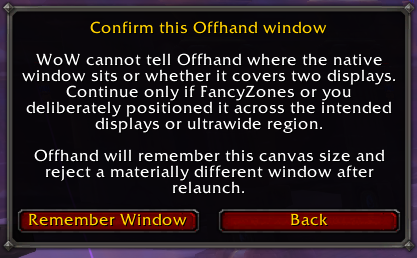
4000×2560 physical display union can therefore legitimately appear in Offhand as approximately 3998×2480. Keep WoW in standard Windowed mode, remove any FancyZones space around the zone, visually confirm the seam, then choose Remember Current Window. Offhand stores the detected render canvas and does not require it to equal the monitors’ combined outer rectangle.
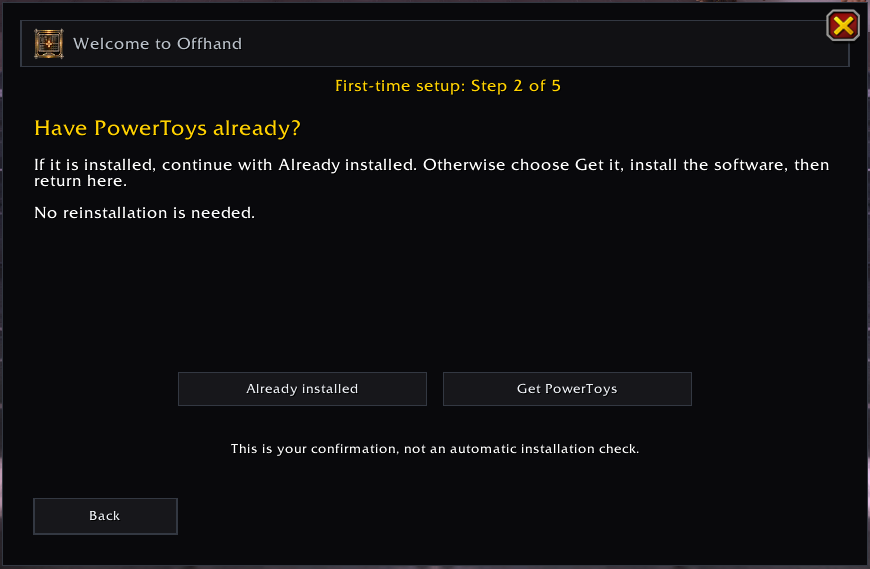
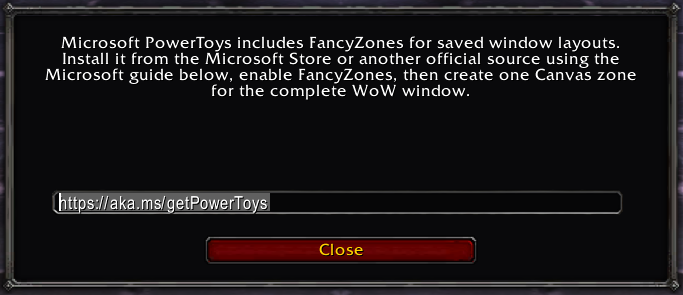
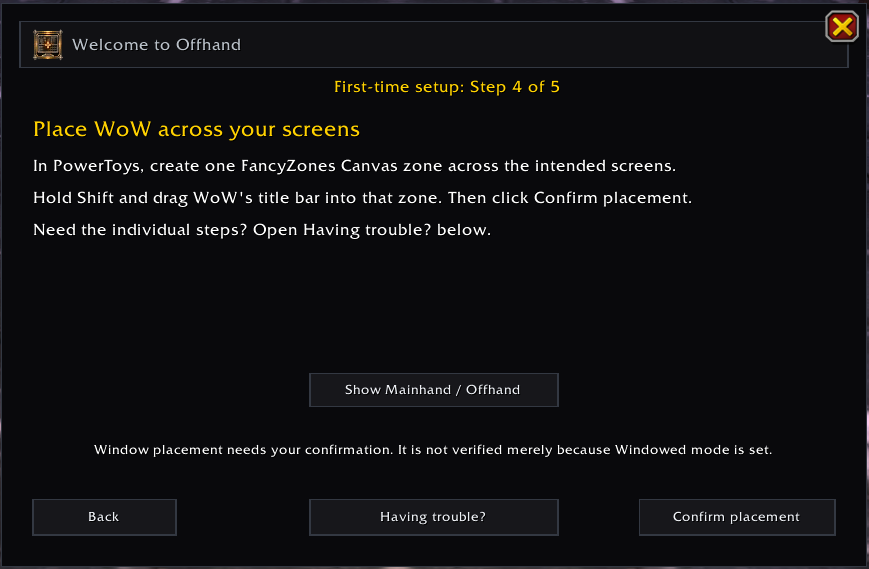
In Windows Display Settings, arrange the display rectangles so their shared edges match the screens on your desk. A false vertical offset creates invisible canvas space.
Choose Options → Graphics → Display Mode → Windowed. Do not use Windowed (Fullscreen), which is restricted to one display.
Unmaximize WoW so its title bar and borders are visible. Move it onto the Mainhand display before expanding it across the intended area.
Drag the title bar across the intended displays or ultrawide region. Resize the left, right, top, and bottom borders until the visible canvas is correct.
Confirm the game area is fully visible on Mainhand and the workspace lands on the Offhand display. Account for any black or unreachable area created by unequal display alignment.
Type /offhand guide, choose Configure Manually, select Confirm placement, then Remember Window after checking the visible result.
Offhand stores the confirmed WoW render-canvas dimensions. On later launches, reproduce that size before Offhand reapplies the saved split and panel layout.
WoW does not expose the native window position or physical monitor rectangles to the addon. The title bar remains, placement may need to be repeated after launch, and active disconnect recovery requires Companion.
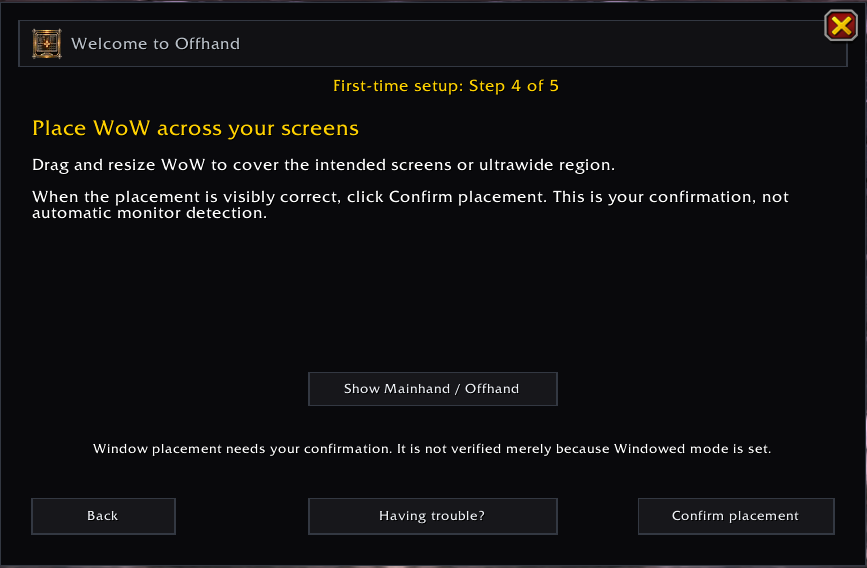
/offhand guide and choose Use FancyZones or Configure Manually./offhand diag when reporting a mismatch or persistence problem.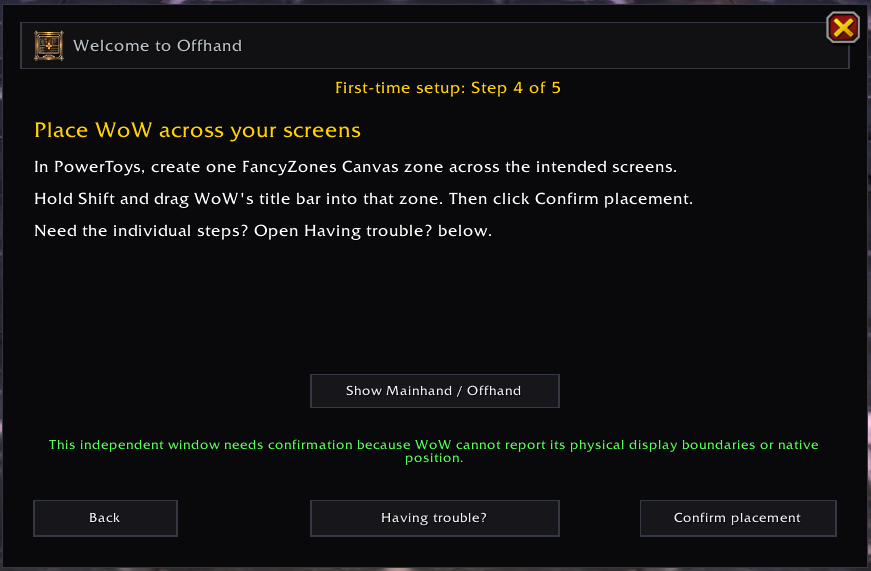
After setup, exit WoW normally and fully relaunch it. Reapply the FancyZones zone or manual window size, then confirm that the workspace panels and Mainhand HUD return. On Forever, run /offhand diag and include the reported persistence and geometry sources with any support request.
If the window does not match, no saved panel positions are deleted. Restore the intended window, open /offhand, and use Remember Current Window again only after you have visually confirmed the placement.